
.svg)
.png)
.png)

.svg)
.svg)
.svg)
.svg)
How to Find a Work Email from a Name and LinkedIn (2-Step Workflow)
If you work in outbound, you know the pain: you start with nothing but names and companies, but you still need LinkedIn profiles and verified work emails — fast, clean, and with high match accuracy.
Crona takes basic inputs like a name, title, or company and turns them into a complete dataset: the right LinkedIn URL, a verified work email, and validated role and company details. And it does this instantly across hundreds or thousands of rows.
What you need to start
You only need a CSV with basic person data — name, title, and company. That’s enough for Crona to locate the right LinkedIn profile and find the verified work email on scale.
Step 1 — Sign up and create a new project in Crona.ai
- Sign up in Crona https://app.crona.ai/sign-up (you get 1000 free credits)
- Create a new project
- Upload your CSV
- Make sure the column with LinkedIn URLs is correctly detected and named (for example,
linkedin)
One row = one person.
Step 2 — Find Person LinkedIn (match each person to the right LinkedIn profile)
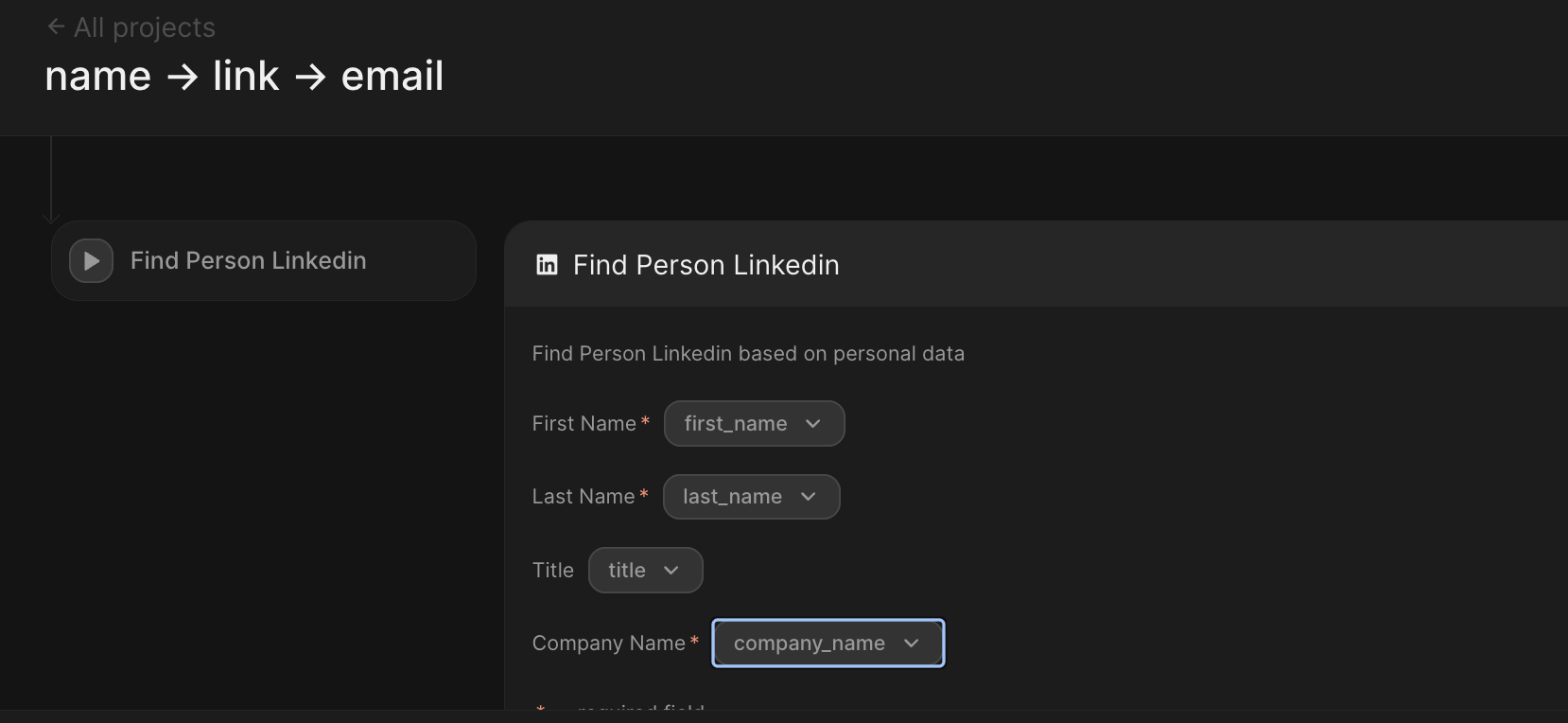
- Click Add Enricher and choose Find Person Linkedin
- Map your columns
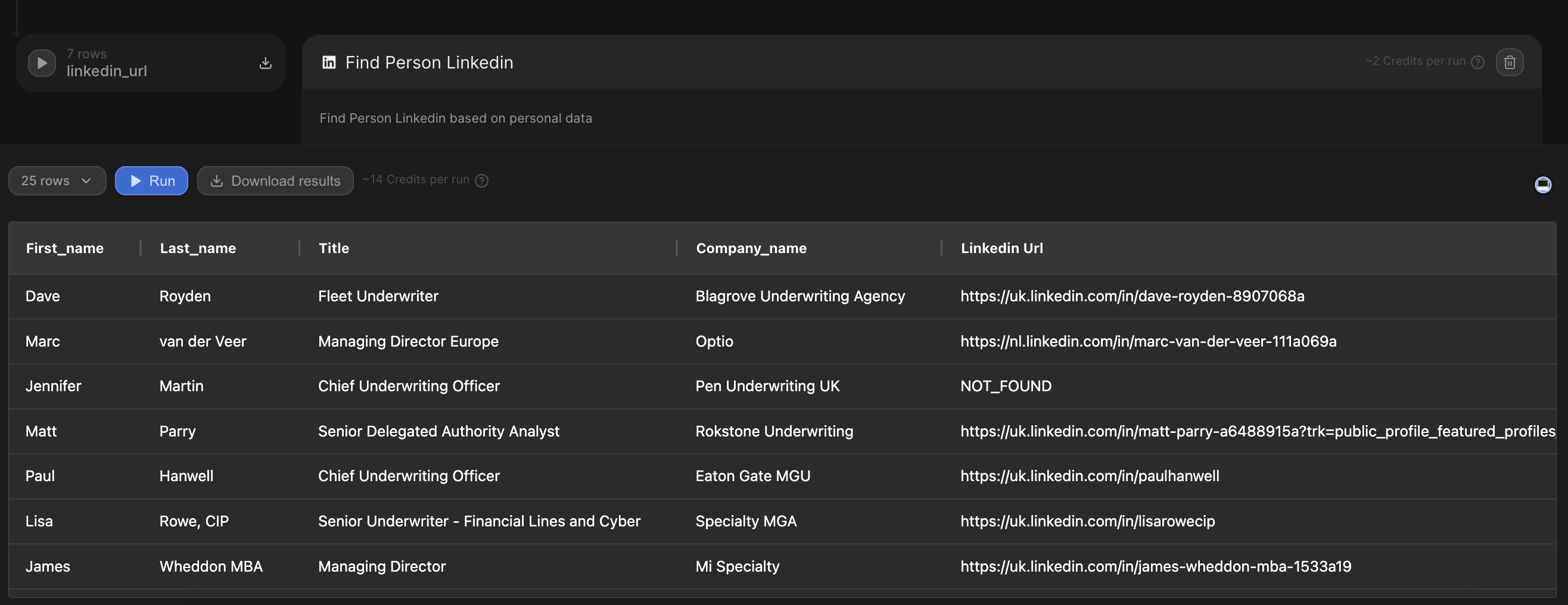
- You can rename automatically generated variable name to something clearer (for example,
linkedin_url) so it’s easier to navigate - Click the Play button on the left of the enricher to run just this step.
Step 3 — Person Verified Email (get a verified work email from the LinkedIn profile)
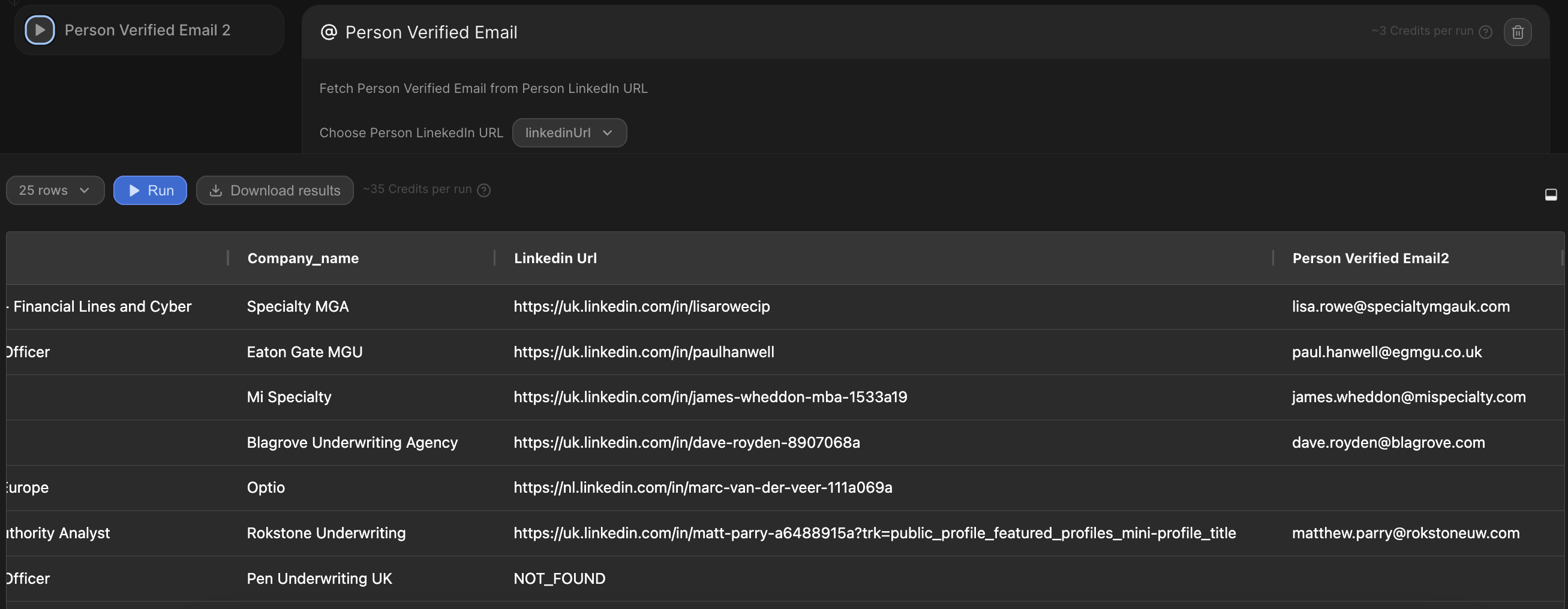
- Add the Person Verified Email enricher
- In Choose Person LinkedIn URL, select the column from Step 2 (e.g.
linkedin_url) - Run the step with the Play button.
This step runs a waterfall email enrichment across multiple providers — Hunter, Prospeo, Enrow, Apollo, Wiza — which maximizes the chances of finding a valid work email for the person you’re researching.
How to run enrichers without wasting credits
You’ll see two ways to run the workflow:
- Run — launches all enrichers from top to bottom and shows the total credit cost per run.
- Use this only when your whole setup is finished. If you click it too early, you’ll burn credits for every step in the chain.
- Play button next to each enricher — runs only that step.
- Use this to test your workflow step-by-step and avoid unnecessary credit usage.
How much does this cost?
- Find Person LinkedIn → ~2 credits per row
- Person Verified Email → ~3 credits per row
Total = ~5 credits per full enrichment (LinkedIn + verified email).
On a free plan (1000 credits) you can enrich ≈200 people end-to-end. Perfect for validation.
FAQ
What if LinkedIn is not found?
You’ll see NOT_FOUND. You can manually check those cases if needed.
Does this return work emails or personal emails?
Work emails. The waterfall is optimized for corporate domains. Personal inboxes are avoided unless it’s the only public contact.
Can I run this on 10k+ rows?
Yes. But we recommend testing 50–100 rows first, then run the entire dataset.
Use cases
Conference lists
Only names + companies? Crona adds LinkedIn + work emails.
Outbound preparation
Build a clean, enriched list before launching sequences.
Agency projects
Deliver fully enriched datasets to clients
CRM cleanup
Update contacts missing key identifiers
Partnerships and BD
Quickly verify who the real decision-makers are.
.svg)
.jpg)

.svg)

.png)

